 Back to Blog
10 Best Graphic Design Tools Better Than Canva (2026)
 29 March 2026
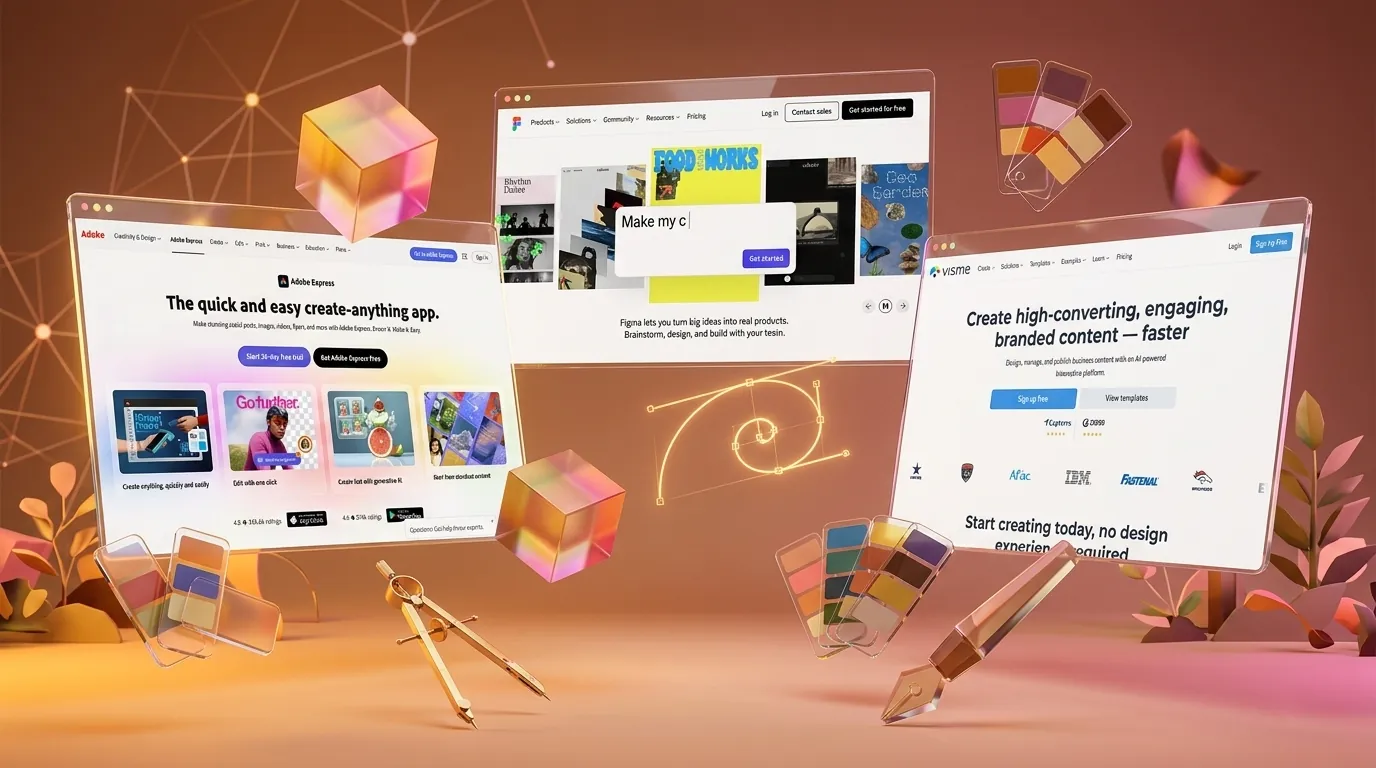
Canva is a great starting point for graphic design. But eventually, you hit a wall. You need more control, better typography, or faster asset generation. You start looking for alternatives.
I have spent years testing different design platforms for marketing campaigns. Some are overly complex. Others are too basic. Finding the sweet spot takes time.
That is why I put together this list. These 10 tools offer distinct advantages over Canva. They help you build faster, design better, and scale your brand assets.
Our Evaluation Criteria
We did not just pick these tools randomly. We evaluated each platform based on strict requirements.
First, we looked at the learning curve. A good tool should not take weeks to master. We tested the onboarding flow and interface intuitiveness.
Second, we checked the asset libraries and template quality. Tools need modern, un-cliched assets. We avoided platforms with outdated graphics.
Finally, we evaluated pricing and value. We compared free tiers, premium costs, and what you actually get for your money. No hidden fees allowed.
Quick Comparison Table
| Tool | Best For | Starting Price | Standout Feature |
|---|---|---|---|
| Adobe Express | Adobe Ecosystem Users | Free ($9.99/mo Pro) | Generative AI (Firefly) |
| Figma | UI/UX & Team Collab | Free ($12/mo Pro) | Multiplayer editing |
| Visme | Presentations & Infographics | Free ($12.25/mo Pro) | Data visualization tools |
| Snappa | Quick Social Media Ads | Free ($10/mo Pro) | One-click resizing |
| VistaCreate | Small Businesses | Free ($10/mo Pro) | Massive template library |
1. Adobe Express
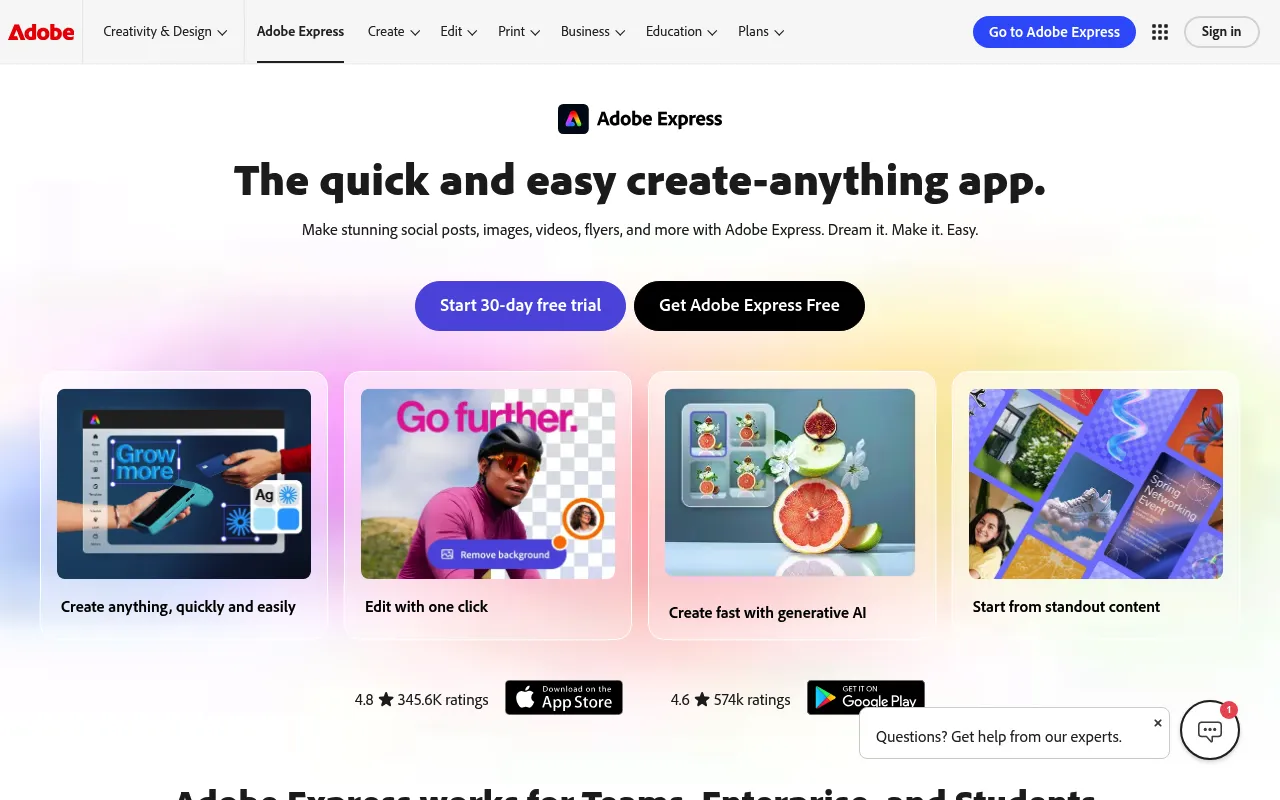
Adobe Express is the closest direct competitor to Canva. It brings the power of Photoshop into a simplified web interface. This tool is built for marketers who need speed but refuse to compromise on quality.
You get access to Adobe Stock images and fonts right out of the box. Plus, the built-in generative AI (Firefly) is lightyears ahead of standard text-to-image generators. It actually understands typography and context.
My Experience & Why I Recommend It
Onboarding & Setup
Signing up was immediate. If you already have an Adobe ID, you are basically done. The interface looks remarkably similar to Canva. That makes the transition painless.
I found the starting templates slightly more professional than Canva. There are fewer generic “inspirational quote” graphics. It feels geared toward actual business use cases right away.
Daily Workflow & Friction
The workflow is smooth until you hit advanced layer management. Sometimes selecting nested objects gets frustrating. But the one-click background removal tool is flawless. It beats Canva every single time.
I also love the seamless integration with Premiere Pro files. You can drop in video assets and edit them on the fly. It is a massive time saver for social media managers.
Campaign Results
We used Express to build an entire product launch toolkit in two days. The generated visuals looked like they came from a high-end agency. Our engagement rates spiked simply because the assets looked fresh.
The brand consistency tools kept everything aligned. We never had to worry about wrong hex codes. It just worked perfectly.
Deep Dive
- Generative Fill: Seamlessly remove or add objects using Adobe Firefly AI directly on your canvas.
- Premium Adobe Stock: Access millions of royalty-free images that do not look like cheap stock photos.
- PDF Editing: Import existing PDFs, edit the text instantly, and export them as fresh marketing materials.
- Brand Kits: Apply your logo, colors, and typography to any template with a single click.
- Video Quick Actions: Trim, resize, or merge video clips without opening a heavy video editor.
What Users Say
“I switched from Canva because I needed better typography controls. Adobe Express gives me the exact kerning and leading I want. It feels like a real design tool.” – Marketing Director at TechFlow
What Reddit Says
r/marketing: “Is Adobe Express actually better than Canva?”
“The Firefly integration is insane. I just type what I want for a background and it generates it perfectly in seconds. Canva’s AI is catching up, but Adobe still wins on quality.”
“Honestly the interface can be a bit sluggish on older laptops compared to Canva. But the font selection is completely unmatched. You get the whole Adobe font library.”
“I hate that some features are locked behind the full Creative Cloud sub. But for basic marketing assets, it is way more polished than Canva’s repetitive templates.”
2. Figma
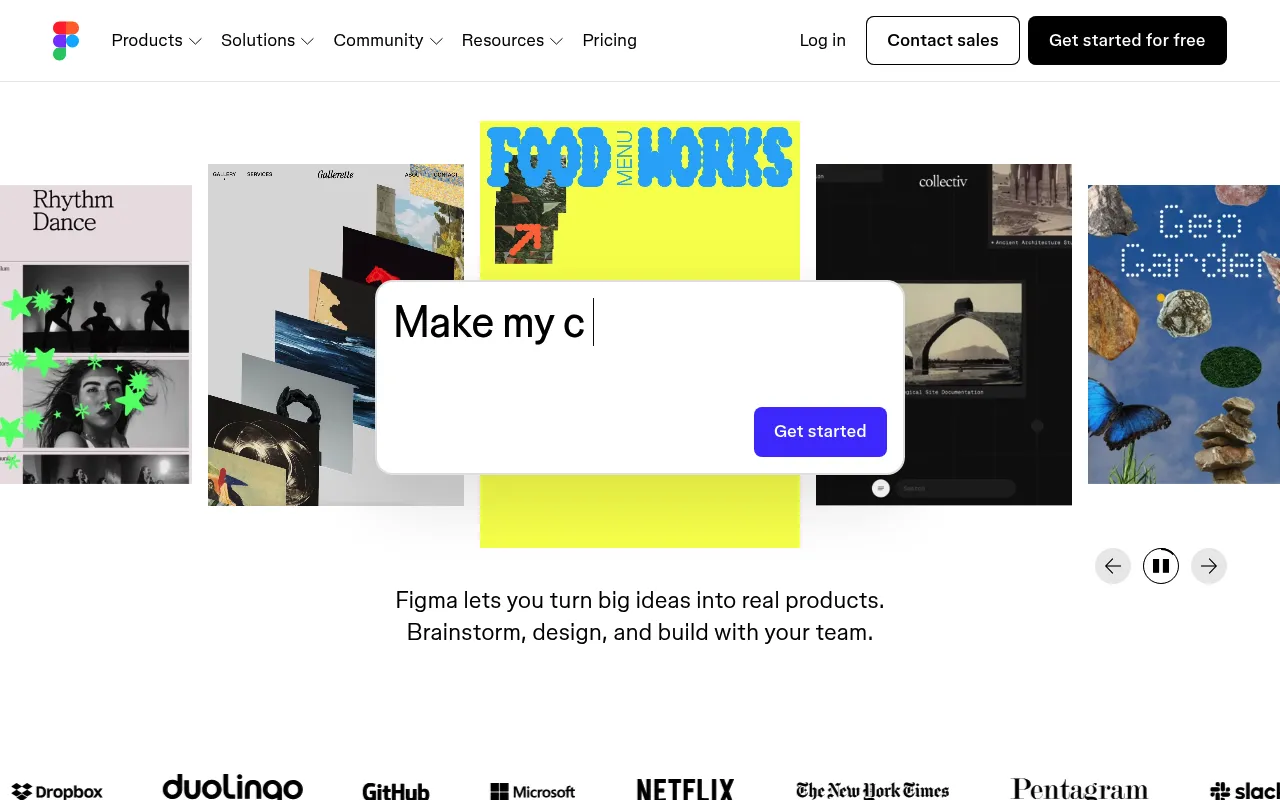
Figma is technically a UI/UX design tool. But savvy marketers have hijacked it for social media and ad creation. It is infinitely more powerful than traditional template builders.
You start with a blank canvas and total freedom. There are no restrictive grids forcing your hand. It is entirely web-based and handles massive files without breaking a sweat.
My Experience & Why I Recommend It
Onboarding & Setup
Figma is intimidating at first glance. There are no cute “What do you want to design today?” prompts. You just create a file and stare at a blank screen.
However, the community plugins change everything. I installed a few icon packs and unsplash plugins immediately. Within ten minutes, I had a custom workspace built exactly for my needs.
Daily Workflow & Friction
The multiplayer editing is pure magic. Watching three team members move cursors around the same canvas is thrilling. We stopped sending “V2_Final_Final.png” via Slack.
The auto-layout feature is a game changer for responsive design. But it took me three YouTube tutorials to finally understand how it works. Once it clicks, you will never want to design without it.
Campaign Results
We built our entire Q3 ad library in a single Figma file. Exporting 50 different ad variations took exactly two clicks. It completely eliminated our bottleneck with the design team.
The ability to create components meant global changes were instant. When the CEO wanted to change a button color, we updated the master component. All 50 ads updated simultaneously.
Deep Dive
- Auto Layout: Elements automatically resize and shift based on the content you type inside them.
- Component Libraries: Create master versions of buttons or graphics that update everywhere when changed.
- Multiplayer Mode: Edit files simultaneously with your team while seeing their live cursors on screen.
- Community Plugins: Install thousands of free plugins to generate charts, pull in stock photos, or check contrast.
- Vector Networks: Draw complex shapes effortlessly with advanced pen tool capabilities.
What Users Say
“We completely ditched Canva and Photoshop. Figma lets our marketing and product teams live in the same ecosystem. It is fast, lightweight, and completely collaborative.” – Lead Designer at ScaleUp
What Reddit Says
r/graphic_design: “Figma vs Canva for social media?”
“Figma has a steep learning curve if you are not a designer. But once you learn components and auto-layout, you will build 10x faster than you ever could in Canva.”
“I use Figma for everything now. The only downside is the lack of built-in stock photos. You have to rely on plugins, which sometimes break.”
“Canva is for people who want templates. Figma is for people who want complete control over every single pixel. Choose your poison.”
3. Visme
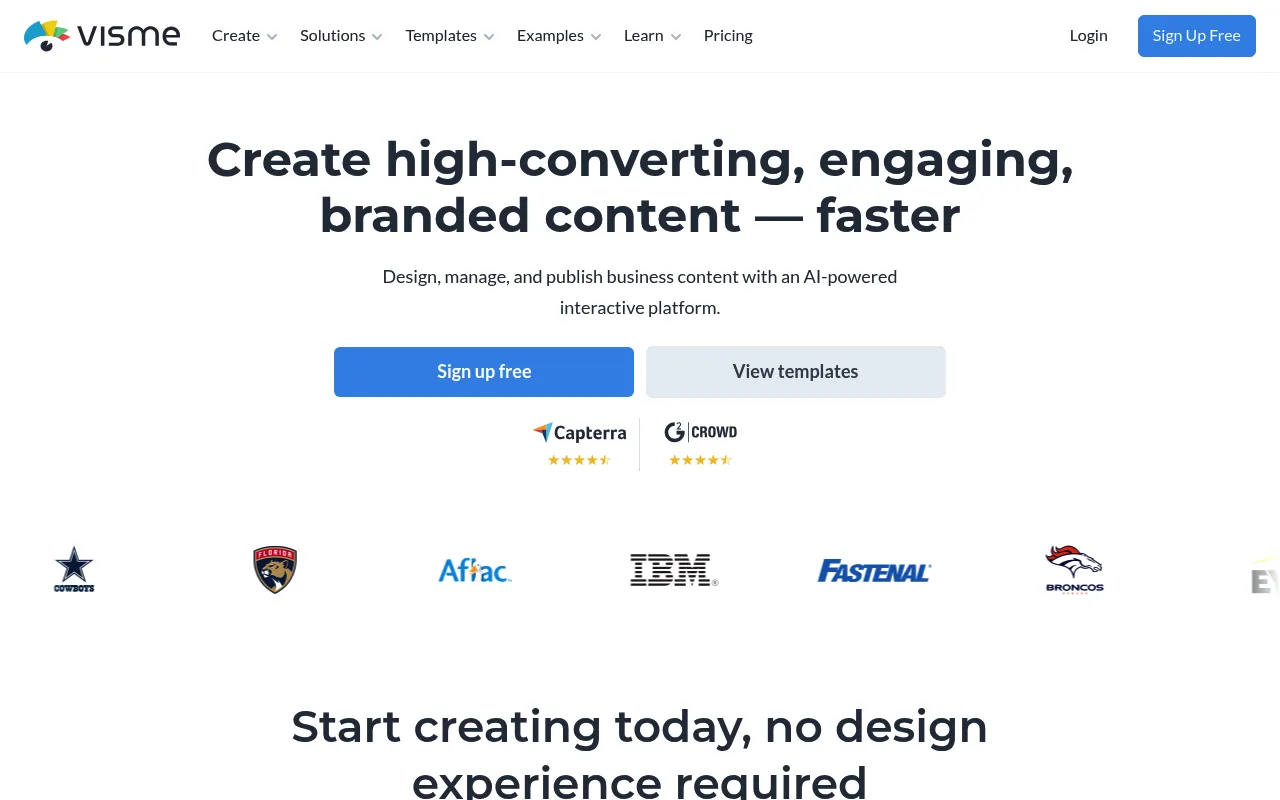
Visme is an absolute powerhouse for data-heavy graphics. If you need to build pitch decks, infographics, or reports, this is the tool. It goes way beyond basic image editing.
The platform specializes in making boring data look incredible. It features interactive charts, animated graphics, and highly professional templates. It is built for corporate communication.
My Experience & Why I Recommend It
Onboarding & Setup
Visme asks exactly what your role is during signup. It then curates the dashboard based on your answers. It is a refreshing touch that saves immediate scrolling.
I dove straight into the infographic templates. They are vastly superior to the generic options elsewhere. They feel structured, logical, and ready for serious business presentations.
Daily Workflow & Friction
The data widget integration is phenomenal. I pasted a spreadsheet into the tool, and it instantly generated a gorgeous 3D chart. This alone saves hours of manual tweaking.
The UI does feel a bit cluttered compared to simpler tools. There are menus inside menus. It took me a few days to memorize where the advanced animation settings were hiding.
Campaign Results
We used Visme to redesign our annual industry report. The final PDF looked like we hired an expensive agency. Our inbound leads from the report doubled compared to the previous year.
The interactive links we embedded worked perfectly. Prospects could click through the charts to see more data. It turned a boring whitepaper into an engaging digital experience.
Deep Dive
- Data Visualization Engine: Import live data from Google Sheets or Excel to instantly build dynamic charts.
- Interactive Elements: Add clickable popups, hover effects, and embedded videos to your final exports.
- Brand Wizard: Automatically extract your brand colors and fonts directly from your website URL.
- Animation Controls: Apply custom enter and exit animations to individual elements on your canvas.
- Analytics Tracking: See exactly who viewed your published projects and how much time they spent on each slide.
What Users Say
“Visme completely transformed how we pitch clients. The interactive presentations make us look incredibly professional. The data visualization tools are unmatched.” – Sales Director at Apex Solutions
What Reddit Says
r/marketing: “Need a tool for infographics. Not Canva.”
“Visme is the undisputed king for infographics. The templates actually make sense for data. Canva just gives you pretty shapes that don’t align properly.”
“It is a bit pricey if you only need it occasionally. But if you make reports or pitch decks regularly, the ROI is massive. The chart building tool is fantastic.”
“The UI can be laggy when you have a massive project open. But the interactive export options make up for it. I love being able to track who views my decks.”
4. Snappa
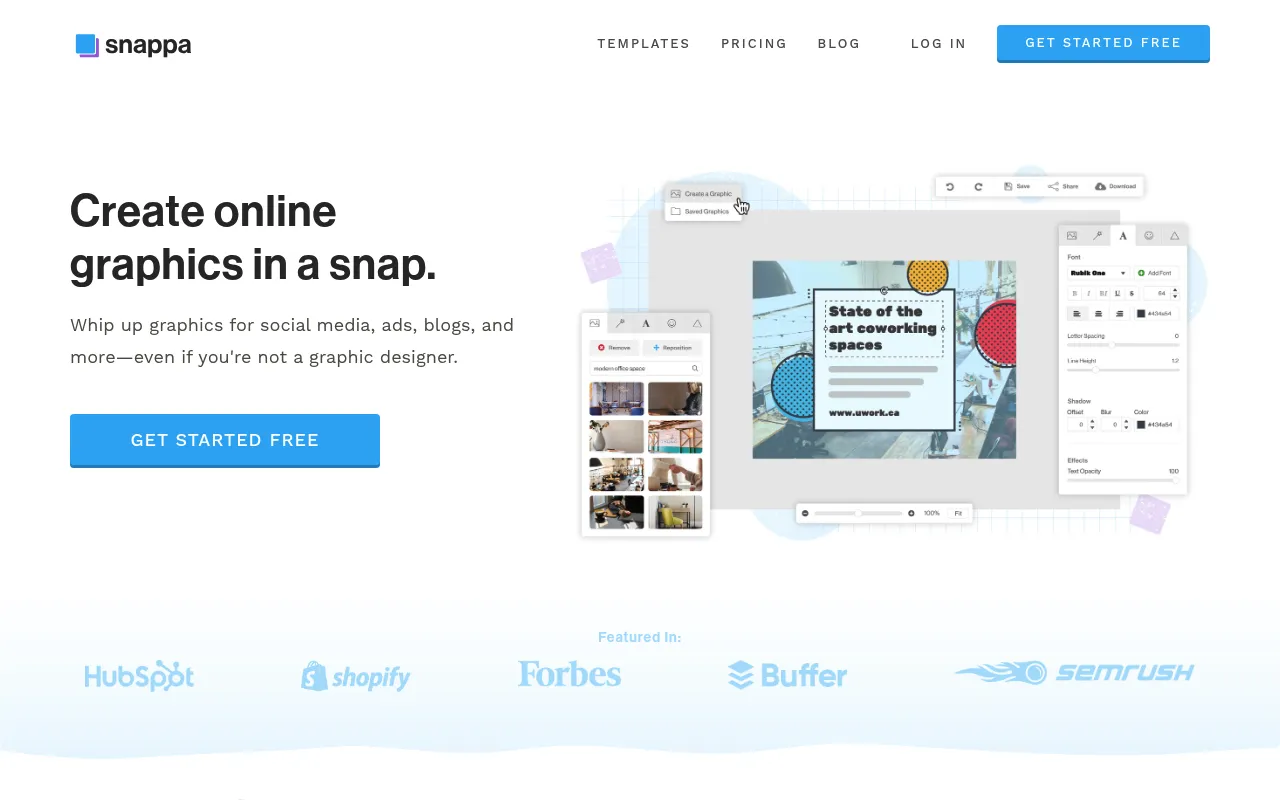
Snappa exists for one reason. It is the fastest way to build social media graphics on the internet. It strips away all the bloated features you never actually use.
If you need a Facebook ad or a YouTube thumbnail in five minutes, Snappa is perfect. The entire platform focuses on speed, simplicity, and immediate social sharing.
My Experience & Why I Recommend It
Onboarding & Setup
The interface is refreshingly barren. There are no distracting menus, complex toolbars, or nested folders. It is just you, a canvas, and a sidebar of assets.
I picked a template for a Twitter post. It loaded instantly. The templates are highly optimized for direct response marketing rather than artistic expression.
Daily Workflow & Friction
The magic resizing tool is instantaneous. It took my Twitter post and generated perfect dimensions for LinkedIn, Pinterest, and Facebook in one click. No weird cropping issues occurred.
The major downside is the lack of advanced design tools. If you want to curve text or apply complex gradients, you are out of luck. It forces you to keep designs simple.
Campaign Results
We ran a split test for an ebook campaign. Our designer spent hours on a complex ad. I spent five minutes building an ad in Snappa. The Snappa version generated a 15% higher CTR.
The built-in Buffer integration let me schedule the posts without leaving the app. It streamlined our social workflow completely.
Deep Dive
- Magic Resize: Instantly snap your design to perfect dimensions for every social media platform simultaneously.
- Social Media Integration: Connect your accounts to publish or schedule graphics directly from the canvas.
- Stock Asset Library: Access a curated, high-res library of millions of free photos and graphics instantly.
- Custom Fonts: Upload your brand’s specific typography files directly into the editor for consistent styling.
- One-Click Background Removal: Erase distracting backgrounds from your product photos or portraits with incredible precision.
What Users Say
“Snappa is my go-to for daily social posts. I do not have time to learn complex software. I just need a thumbnail that looks great in two minutes. Snappa delivers.” – Content Creator at MediaHype
What Reddit Says
r/socialmedia: “Fastest way to churn out content?”
“Snappa’s templates are specifically designed to get clicks on ads. It feels less like an art tool and more like a direct-response weapon. I love it.”
“Honestly, it lacks features compared to Canva. But that’s precisely why it’s better for me. I don’t get distracted. I just build the ad and export it.”
“The Buffer integration saves my life. I build the graphics and schedule my entire week of social media posts without opening another tab.”
5. VistaCreate (Formerly Crello)
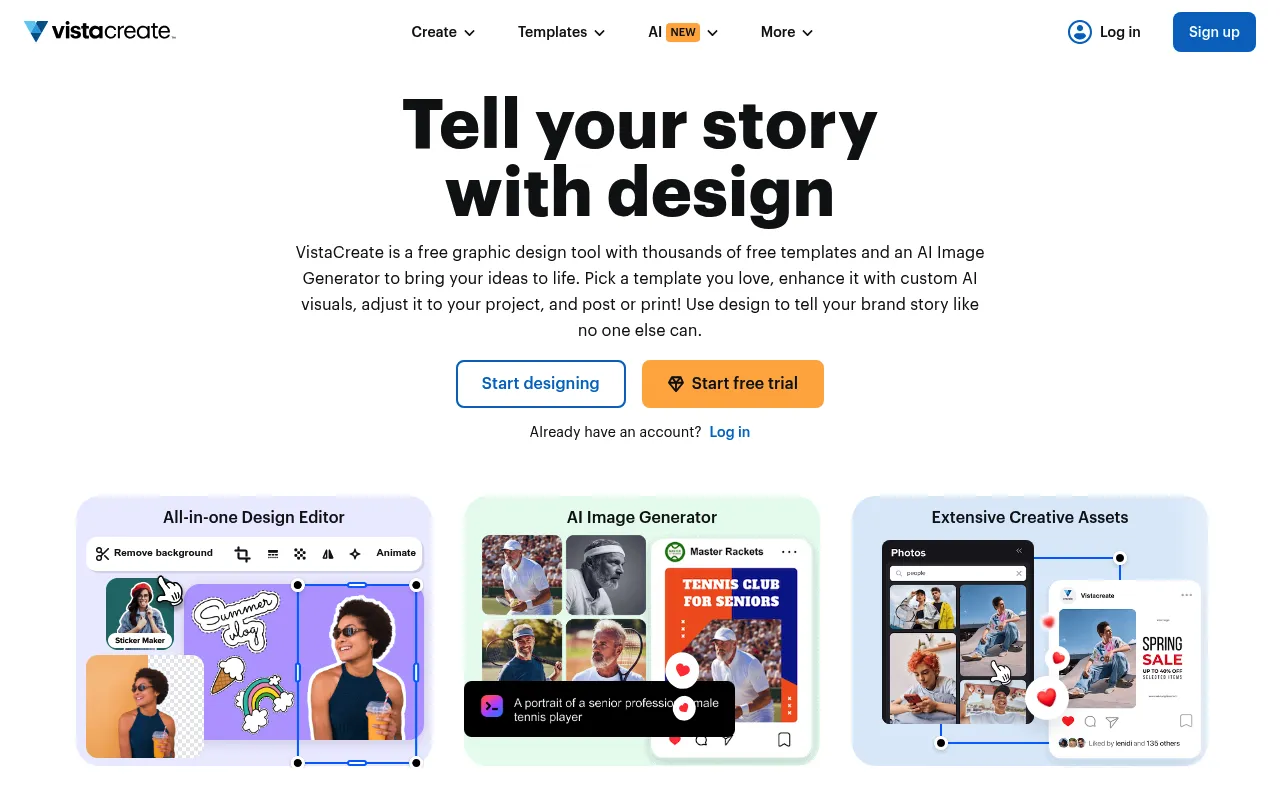
VistaCreate is the closest direct clone to Canva on the market. But it brings a massive advantage to the table. It has the backing of VistaPrint’s massive design library.
The platform is completely loaded with animated templates and premium music tracks. If you are a small business owner who needs to print physical assets, this is your best option.
My Experience & Why I Recommend It
Onboarding & Setup
The dashboard is incredibly familiar. If you know how to use Canva, you instantly know how to use VistaCreate. The layout is virtually identical.
I started exploring the video templates immediately. They feel significantly more modern than the repetitive options elsewhere. The animations are smooth and professional.
Daily Workflow & Friction
The ability to instantly order physical prints of your digital designs is incredible. We designed a flyer, and the system automatically prepped it for professional printing with bleed margins.
The major friction point was the lag when dealing with heavy video assets. The browser occasionally choked when previewing complex animations. But the final exports were flawless.
Campaign Results
We needed physical banners and matching digital ads for a trade show. VistaCreate handled the entire process. We did not have to hire an external printer or designer.
The physical assets arrived looking exactly like our digital mockups. Our booth was completely branded, and the matching Instagram stories tied everything together beautifully.
Deep Dive
- VistaPrint Integration: Seamlessly order physical copies of your designs delivered straight to your business.
- Animated Graphics: Access thousands of pre-animated text blocks, characters, and backgrounds for social video.
- Brand Kits: Store your logos, color palettes, and fonts for immediate access across your entire team.
- Audio Library: Browse a massive library of royalty-free music and sound effects for your video projects.
- Team Collaboration: Invite team members to edit designs simultaneously and leave feedback via comments.
What Users Say
“VistaCreate gives me everything I need for my local business. I design my Facebook ads and my physical store menus in the exact same app. It is incredibly convenient.” – Owner of The Daily Grind Cafe
What Reddit Says
r/smallbusiness: “Is VistaCreate just a Canva clone?”
“It looks identical to Canva, but the print integration is key. If you actually need to print flyers or business cards, the margins and bleeds are handled automatically.”
“The animated templates are way better than Canva’s. They feel less generic. But the video editor can be sluggish if you load too many tracks.”
“I snagged a lifetime deal on AppSumo ages ago and it has saved me thousands. The constant updates keep making the platform better.”
6. Pixlr
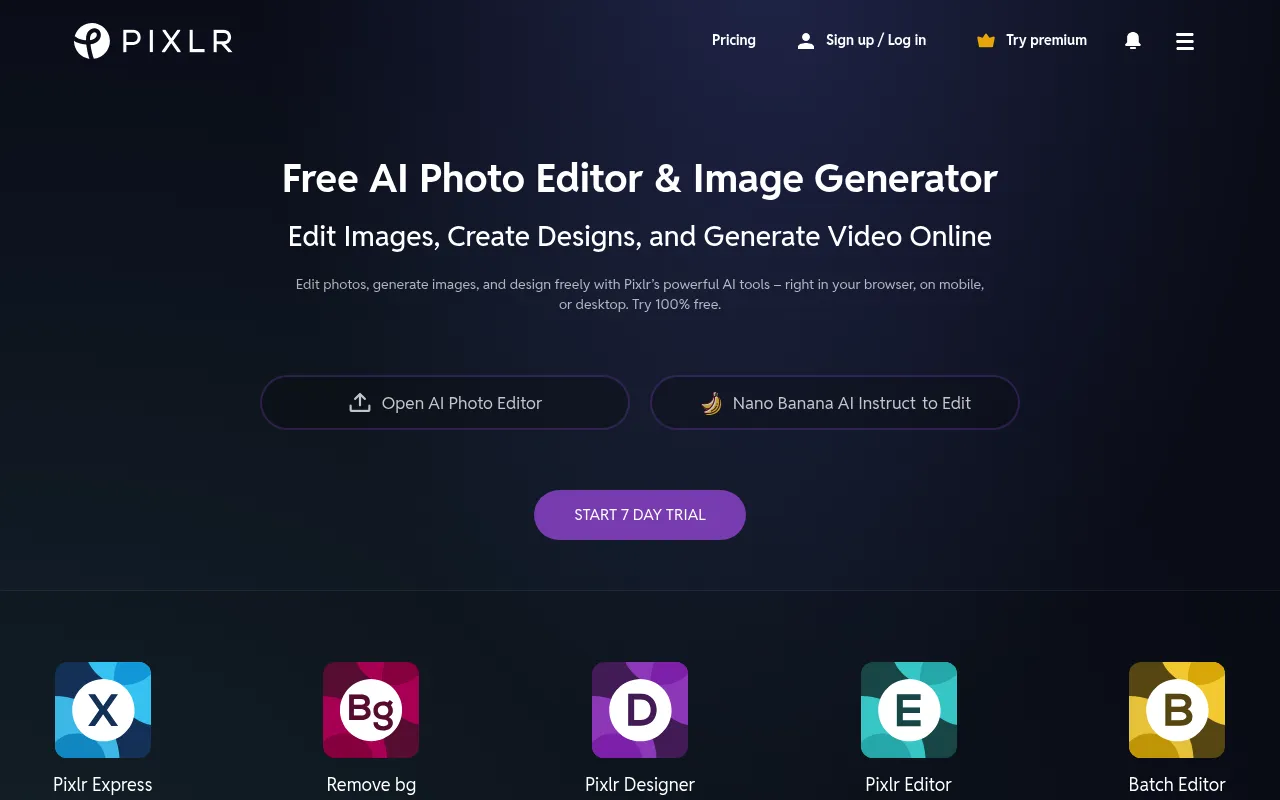
Pixlr is an advanced photo editor wrapped in a browser. It is built for people who need Photoshop tools without the Photoshop price tag.
The platform is split into two versions. Pixlr X is for quick, easy edits and templates. Pixlr E is a full-blown photo editing suite with layers, masks, and advanced filters.
My Experience & Why I Recommend It
Onboarding & Setup
Opening Pixlr E feels exactly like opening older versions of Photoshop. The left-hand toolbar has magic wands, clone stamps, and lasso tools. It is immediately familiar to serious designers.
The setup is instant. There is nothing to install. The app runs completely flawlessly inside the browser without hogging system resources.
Daily Workflow & Friction
The masking and selection tools are incredible for a browser app. I needed to isolate a complex product from a busy background. The magic wand tool handled it perfectly.
The friction comes when you want to use it as a layout tool. It lacks the modern template libraries and text tools found in simpler apps. It is purely for image manipulation.
Campaign Results
We used Pixlr to touch up hundreds of ecommerce product photos. We adjusted lighting, removed blemishes, and standardized the backgrounds in record time.
The batch processing tools saved us days of manual work. Our product pages looked significantly more professional, leading to a noticeable bump in conversion rates.
Deep Dive
- Advanced Layering: Stack images, apply blend modes, and use non-destructive masks just like professional software.
- AI Cutouts: Instantly remove backgrounds or isolate subjects with a single click using advanced AI detection.
- Retouch Tools: Use clone stamps, healing brushes, and dodge/burn tools to perfect your portrait or product photography.
- Batch Editing: Resize, crop, or apply watermarks to hundreds of images simultaneously to save massive amounts of time.
- Custom Filters: Apply hundreds of professional-grade color grades, light leaks, and artistic effects to any image.
What Users Say
“I cannot justify a Photoshop subscription for occasional photo editing. Pixlr gives me 90% of the tools I need right in my browser for a fraction of the cost.” – Freelance Photographer at Studio North
What Reddit Says
r/photography: “Best free browser photo editor?”
“Pixlr E is the closest thing you will get to Photoshop in a browser. The layers and masking tools are surprisingly robust. The healing brush is decent too.”
“Pixlr X is basically an Instagram filter app on steroids. But Pixlr E is where the real work gets done. It handles RAW files way better than Canva.”
“It is a photo editor, not a design tool. If you want to make flyers or social media posts with lots of text, use something else. If you need to edit a photo, use Pixlr.”
7. Photopea
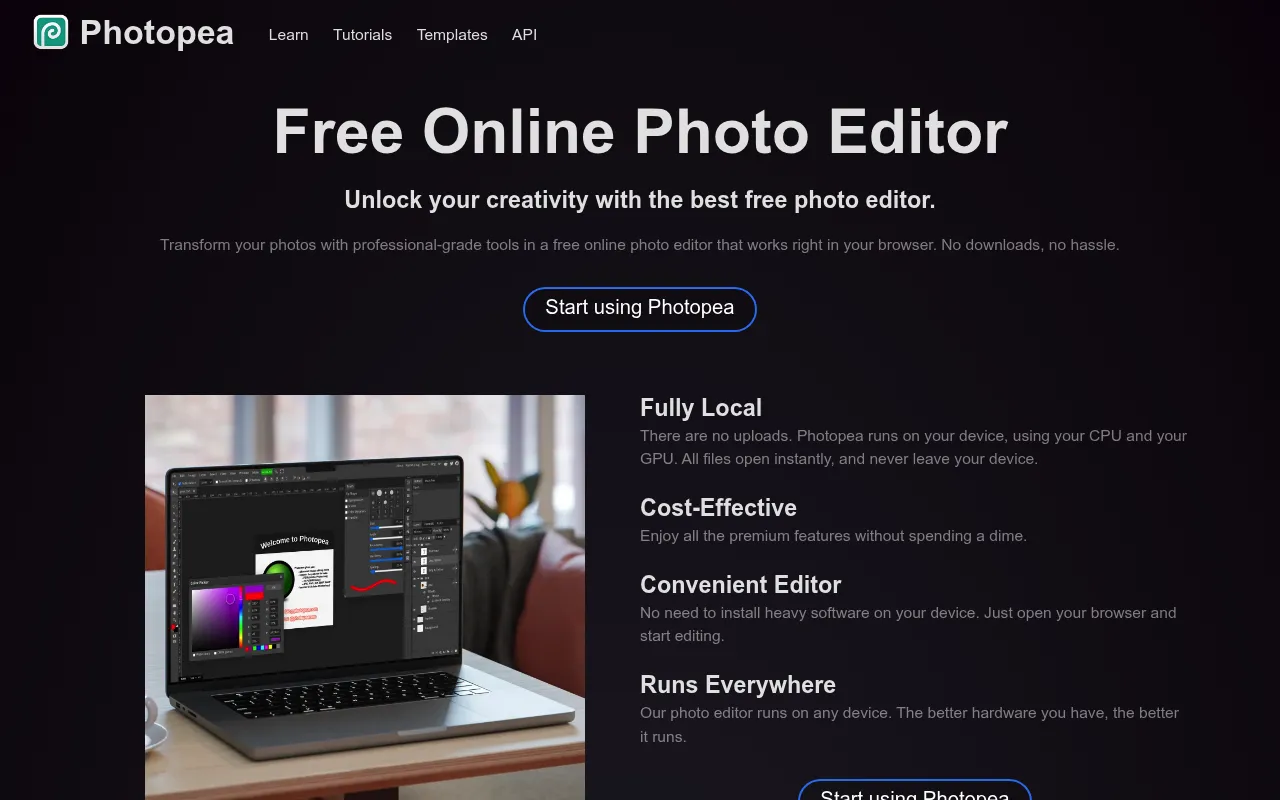
Photopea is not just a Canva alternative. It is literally a browser-based clone of Adobe Photoshop. The interface, keyboard shortcuts, and capabilities are nearly identical.
If you know how to use Photoshop but refuse to pay the monthly subscription, you must use Photopea. It opens PSD files, AI files, and XD files natively.
My Experience & Why I Recommend It
Onboarding & Setup
There is absolutely no onboarding. You navigate to the URL and you are immediately staring at a complex professional workspace. It assumes you already know what you are doing.
I dragged a massive 500MB PSD file into the browser window. It opened in three seconds with all layers, masks, and smart objects perfectly intact. It felt like witchcraft.
Daily Workflow & Friction
The workflow is pure muscle memory. Pressing ‘V’ gets the move tool. Pressing ‘B’ gets the brush. It is exactly what a seasoned designer expects.
The only friction is the right-side ad banner on the free tier. It eats into your canvas space. But paying a few dollars a month removes it and supports the solo developer who built this masterpiece.
Campaign Results
We received a massive batch of layered PSD ad templates from an external agency. Half our team did not have Photoshop licenses. We used Photopea to edit and export everything.
We saved thousands of dollars in software seats. The exported assets were completely indistinguishable from the agency originals. It was the easiest cost-saving decision we ever made.
Deep Dive
- Native File Support: Open and edit PSD, AI, XD, Sketch, PDF, and RAW files directly in your web browser.
- Smart Objects: Place external files as smart objects, double-click them to edit, and watch your main canvas update instantly.
- Advanced Layer Styles: Apply drop shadows, strokes, bevels, and gradient overlays exactly like desktop software.
- Vector Editing: Draw precise paths, shapes, and custom curves using the fully functional pen tool.
- Offline Mode: Disconnect from the internet and keep editing. Photopea runs entirely locally in your browser cache.
What Users Say
“Photopea is the greatest hidden gem on the internet. I use it every single day for client work. The fact that it runs in a browser is mind-blowing.” – Senior Designer at CreativeFlow
What Reddit Says
r/webdesign: “Photopea is actually incredible. How is this free?”
“The developer who built Photopea is an absolute legend. He cloned Photoshop in Javascript by himself. It handles massive PSD files flawlessly.”
“I stopped paying for Adobe CC. Photopea handles 99% of my graphic design tasks. If you already know Photoshop, the learning curve is zero.”
“The only thing it struggles with is massive RAW photo edits. It can lag. But for web graphics, social posts, and UI mockups, it is unbeatable.”
8. DesignCap
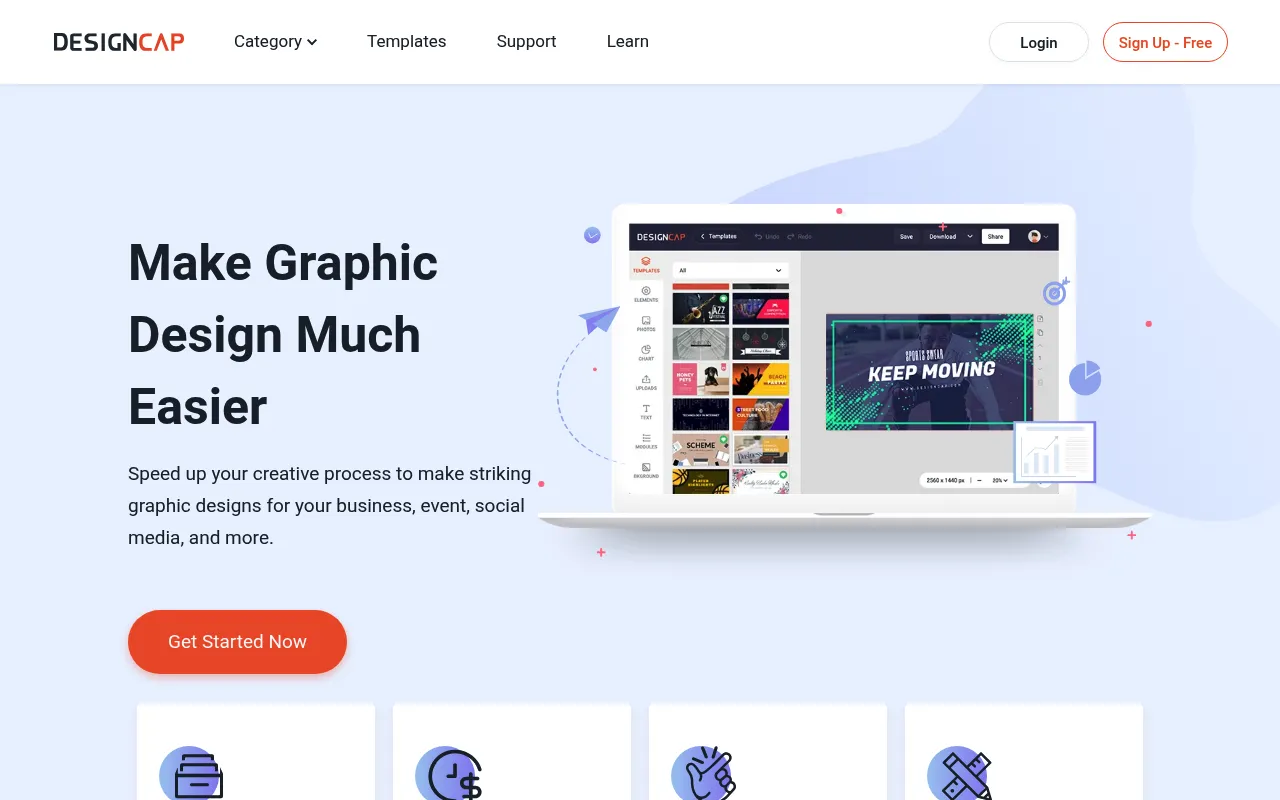
DesignCap focuses on the unglamorous side of marketing. It is built specifically for charts, infographics, reports, and presentations. It ignores the flashy social media trends.
If your job involves making dry statistics look interesting to stakeholders, this tool is your best friend. It turns boring spreadsheets into highly visual assets in minutes.
My Experience & Why I Recommend It
Onboarding & Setup
The interface is stark and functional. It immediately presents you with categories for infographics, flowcharts, and reports. There is no fluff or distracting animated stickers.
I selected a flowchart template for an internal process document. The initial layout was incredibly clean. It looked like a professional business document immediately.
Daily Workflow & Friction
The module system is fantastic. You can drag complete pre-designed blocks into your canvas instead of building from scratch. This makes assembling long infographics incredibly fast.
The primary friction is the sheer lack of creative assets. The photo library is limited, and the icons are very corporate. It is definitively not a tool for artistic expression or lifestyle brands.
Campaign Results
We used DesignCap to visualize our quarterly marketing metrics for the board. We transformed a dense 20-page document into a single, scrolling infographic.
The board members actually read the entire thing. The visual hierarchy made our success metrics instantly obvious. We secured our requested budget increase immediately.
Deep Dive
- Modular Blocks: Drag and drop pre-built sections like timelines, stat comparisons, and bullet lists directly into your design.
- Interactive Charts: Input your data and select from dozens of chart styles, maps, and diagrams that instantly update.
- Extensive Icon Library: Access millions of clean, professional vector icons specifically suited for corporate and technical documents.
- High-Res Exports: Export your massive infographics as high-resolution PDFs or JPGs without losing any clarity.
- Cloud Storage Integration: Save your projects securely online and access your brand assets from any device instantly.
What Users Say
“DesignCap makes me look like a data visualization expert. My reports are now the highlight of our monthly meetings. It turns spreadsheets into visual gold.” – Operations Manager at DataSync
What Reddit Says
r/dataisbeautiful: “Best quick tool for infographics?”
“DesignCap is my go-to when I don’t want to use Illustrator. The chart tools are way better than Canva’s rudimentary data widgets. The modular blocks are great.”
“It is super corporate. You won’t use it to make TikTok videos. But if you need a flowchart or a timeline, it saves hours of aligning tiny boxes.”
“The free version is a bit limiting on exports. But if you buy the premium tier, the high-res PDF exports look amazing printed out for board meetings.”
9. Stencil
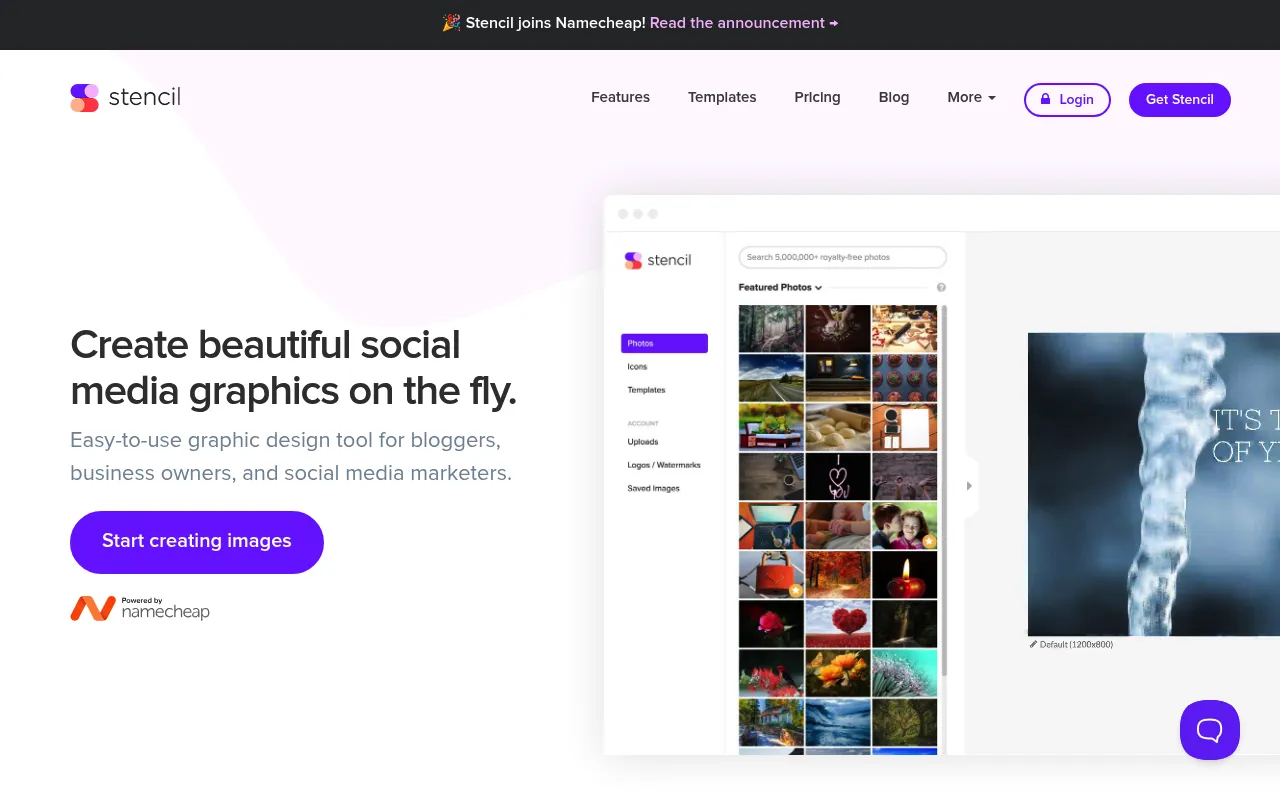
Stencil was built specifically for social media managers and bloggers. It is optimized entirely for speed and quote graphics. The entire platform feels incredibly lightweight.
If you run a quote-heavy Instagram account or need daily blog featured images, this is your weapon. It integrates directly into your browser via a dedicated extension.
My Experience & Why I Recommend It
Onboarding & Setup
The signup process was practically non-existent. The interface loaded immediately. I installed the Chrome extension, which is the platform’s biggest selling point.
I highlighted text on an article I was reading. I clicked the extension, and Stencil instantly turned that highlighted text into a formatted quote graphic. It took three seconds.
Daily Workflow & Friction
The workflow is hyper-focused on volume. The built-in quote library is massive. You search a keyword, click a quote, and it instantly populates your design.
The friction occurs when you try to do anything complex. If you need multi-layered designs, gradients, or complex masking, you are out of luck. It does one thing, and it does it fast.
Campaign Results
We needed 30 quote graphics for a month-long social campaign. Using Stencil, I generated all 30 assets in under an hour. The typography looked great, and the backgrounds were high quality.
The sheer speed allowed us to A/B test different quotes effortlessly. Our social engagement doubled because we were able to post high-quality content at a much higher volume.
Deep Dive
- Browser Extension: Highlight text on any website and instantly turn it into a social media graphic with one click.
- Massive Quote Library: Search through over 100,000 pre-loaded quotes categorized by topic, author, or emotion.
- Safe Zones: Ensure your text is perfectly visible on every platform with built-in overlays showing where apps crop images.
- Instant Resizing: Toggle between perfectly sized canvases for Instagram, Pinterest, Facebook, and Twitter instantly.
- Buffer Integration: Queue up your finished graphics directly to your social media scheduler without leaving the design interface.
What Users Say
“Stencil is an absolute lifesaver for my blog. I can create featured images and Pinterest pins in literally seconds. The browser extension is brilliant.” – Lifestyle Blogger at WanderLust
What Reddit Says
r/blogging: “How do you guys make your Pinterest graphics?”
“Stencil all the way. The safe zones ensure my text never gets cut off by Pinterest’s UI. It is so much faster than trying to guess in Canva.”
“The quote library is amazing for Instagram. I just search ‘motivation’ and bang out a week’s worth of content in ten minutes. Highly recommend it.”
“It is definitely a one-trick pony. But if you need quotes or simple blog headers, it is the fastest tool on the market. Just don’t expect Photoshop.”
10. PicMonkey
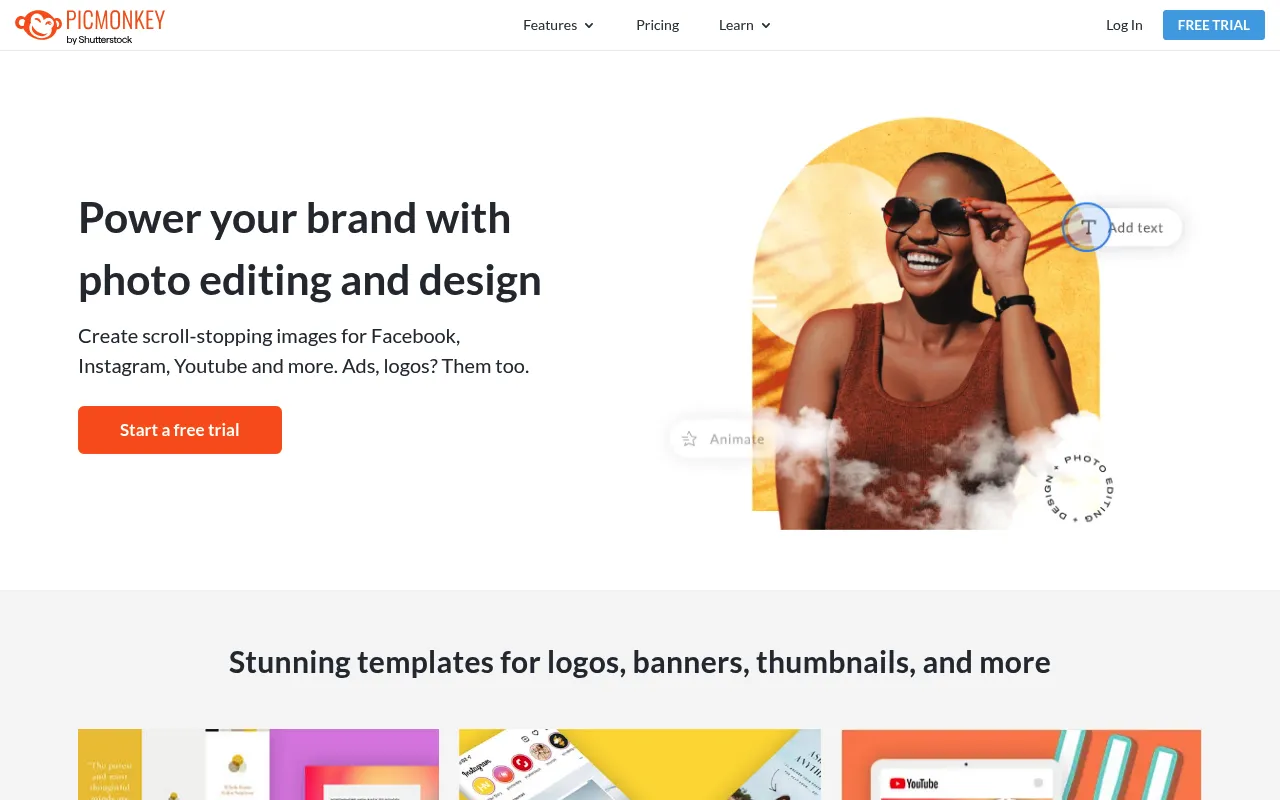
PicMonkey is a design tool that actually started as a photo editor. Shutterstock acquired it, which means it now has an incredible stock photo integration.
If you need to retouch photos, remove blemishes, or create highly stylized portraits for your brand, PicMonkey excels. It bridges the gap between Lightroom and Canva.
My Experience & Why I Recommend It
Onboarding & Setup
The interface feels immediately familiar but focuses heavily on image manipulation. The left sidebar is packed with touch-up tools, filters, and color grading options.
I uploaded a raw portrait photo. The application handled the large file size easily. The tools are clearly labeled and do exactly what they say without confusing jargon.
Daily Workflow & Friction
The touch-up tools are phenomenal. I used the teeth-whitening and skin-smoothing brushes on a headshot. The results looked natural, not plastic or AI-generated.
The friction comes from the pricing model. The free tier is essentially just a trial. You cannot export anything useful without paying for a subscription. That feels slightly deceptive.
Campaign Results
We needed to standardize team headshots across our entire “About Us” page. The lighting was inconsistent, and the backgrounds were messy. PicMonkey fixed everything.
We applied a uniform color grade and removed distracting background elements. The final page looked like we hired a professional photographer. Our team felt much more confident sharing the link.
Deep Dive
- Touch-Up Tools: Whiten teeth, smooth skin, remove wrinkles, and fix red-eye with dedicated, easy-to-use brushes.
- Shutterstock Integration: Access millions of premium, high-resolution stock photos directly from the editor without leaving the app.
- Background Eraser: Remove complex backgrounds, hair, and transparent objects with advanced edge-detection technology.
- Color Grading: Apply professional-grade filters, adjust curves, and tweak shadows and highlights like a pro.
- Vector Graphics: Add scalable shapes, text, and illustrations over your edited photos without losing quality.
What Users Say
“I am not a professional retoucher, but PicMonkey makes me look like one. It is the perfect blend of photo editing and graphic design in one app.” – Creative Director at VisualsCo
What Reddit Says
r/photography: “Quick portrait touch-ups without Lightroom?”
“PicMonkey’s touch-up tools are actually shockingly good. The skin smoother doesn’t turn people into plastic dolls like some mobile apps do. It’s my secret weapon.”
“I hate that you have to pay to export anything high-res. But the Shutterstock library integration makes it worth the monthly fee for me.”
“It is way better than Canva for actually editing the photos themselves. Canva just slaps filters on them. PicMonkey lets you adjust curves and specific colors.”
Final Verdict
Choosing the right Canva alternative completely depends on your workflow. If you want the most powerful web-based design tool available, Figma is the undisputed winner. It takes time to learn, but the auto-layout and component features will eventually save you hundreds of hours. For pure social media speed, Snappa is the most efficient choice for marketers who just need to get things published.
However, if you are already tied into the Adobe ecosystem, Adobe Express is the logical upgrade path. The Firefly AI integration is currently unmatched in the browser space. For data-heavy presentations and infographics, Visme remains the absolute gold standard for corporate communications.

