 Back to Blog
7 Best Screen Recording Tools for Customer Success Teams
 29 March 2026
I remember the exact moment I realized typing out customer support replies was a massive waste of time. I had a client frustrated over a complex billing setting. I drafted a four-paragraph email with six bullet points. They still replied confused.
Then I recorded a 30-second video of my screen showing them exactly where to click. Problem solved instantly. That single interaction fundamentally changed how our Customer Success team operates.
But finding the right screen recording tool isn’t as simple as downloading the first Chrome extension you see. Some are bloated and crash your browser. Others lack the analytics enterprise teams need to track engagement. I spent the last few weeks testing the absolute best screen recording tools specifically tailored for the daily workflows of Customer Success Managers. Here is what I found.
Quick Comparison Table
| Tool | Best For | Starting Price | Free Tier | Standout Feature |
|---|---|---|---|---|
| 1. Loom | Fast, async video messages | $12.50/mo | Yes | AI-powered transcripts & summaries |
| 2. Vidyard | Enterprise sales & support | $19/mo | Yes | Advanced CRM & analytics integrations |
| 3. Zight | Rapid screen capture & GIFs | $9.95/mo | Yes | All-in-one capture (video, screenshot, GIF) |
| 4. Tella | Polished, professional videos | $15/mo | No (Trial) | In-browser video editing & layouts |
| 5. Sendspark | Personalized customer outreach | $15/mo | Yes | Dynamic variables & personalized thumbnails |
| 6. Snagit (TechSmith) | Detailed instructional content | $39/user (One-time) | No (Trial) | Powerful annotation & editing tools |
| 7. Berrycast | Simple, affordable recording | $11.99/mo | No (Trial) | User-friendly interface & white-labeling |
1. Loom
Best For: Fast paced customer success teams needing quick video replies
My Experience & Why We Chose It:
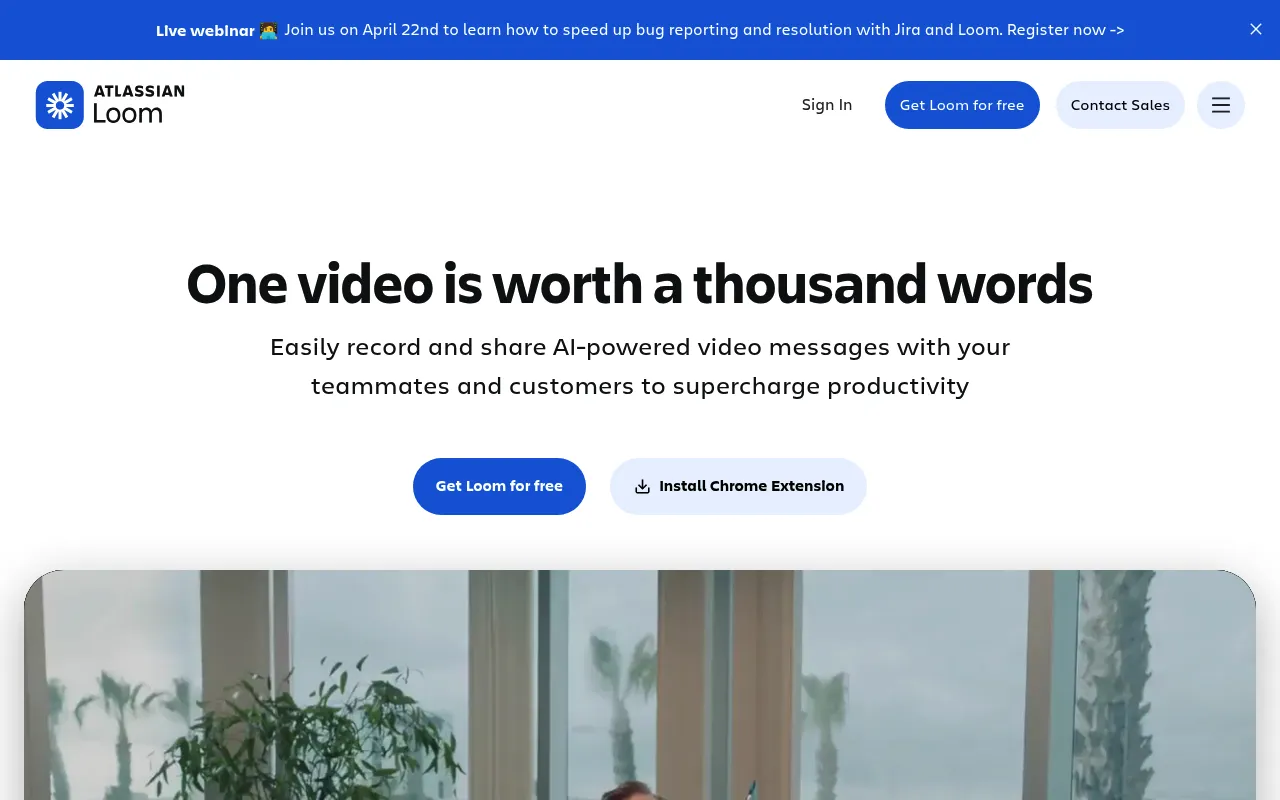
I started using Loom when our ticket volume spiked and typing out step by step guides became impossible. I needed a way to show rather than tell. The Chrome extension sits right in my browser, making it incredibly easy to click and record without breaking my workflow. When a customer is confused about a specific billing setting, I just open their view, hit record, and explain it vocally while pointing my mouse at the exact buttons they need to click.
The real magic for customer success is the instant link generation. The moment I hit stop, the URL is copied to my clipboard. I drop this link directly into Zendesk or Intercom. Customers see an animated preview thumbnail, which drastically increases the click through rate compared to a plain text link. It feels personal and immediate, completely changing the tone of a frustrated support interaction.
However, I did notice some friction with the editing suite. When a customer asks a complex question, I sometimes stumble over my words. Loom offers a stitching and trimming tool, but the web interface can feel sluggish when processing longer videos. I often just restart the recording instead of dealing with the editor, which can be annoying if I am five minutes into a detailed explanation.
The AI features added recently have been a massive upgrade for my follow up emails. Loom automatically generates a transcript, a summary, and even action items based on my audio. I paste these summaries right below the video link in my email. It caters perfectly to users who prefer reading over watching, ensuring I cover all learning styles in one single response without doing extra manual work.
Organizing these videos is another story entirely. The folder structure works perfectly out of the box for a solo user, but it gets messy when multiple team members share a workspace. We had to establish strict naming conventions to prevent our shared team library from turning into a chaotic dumping ground of untitled and duplicate videos.
Deep Dive: Key Features
- Instant Link Sharing: Generates a shareable URL and animated thumbnail immediately after the recording finishes processing.
- Loom AI: Automatically writes summaries, titles, and action items based on the video transcript to save time on email drafting.
Pricing Breakdown
- Free Tier: Yes
- Starting Price: $12.50/user/month
Pros & Cons
| ✅ Pros | ❌ Cons |
|---|---|
|
|
What Reddit Says

r/CustomerSuccess • Posted by u/cs_pro
“Is Loom AI worth the extra cost for CS teams?”
Users debated whether the AI add on justified the price bump. Many agreed the auto generated summaries saved them minutes per ticket, while others felt they could just write the bullet points themselves for simple queries.
Community Takeaway: The core product is universally loved, but the AI features are best suited for teams handling highly technical or lengthy support resolutions.
2. Vidyard
Best For: Enterprise customer success managers focused on analytics and onboarding
My Experience & Why We Chose It:
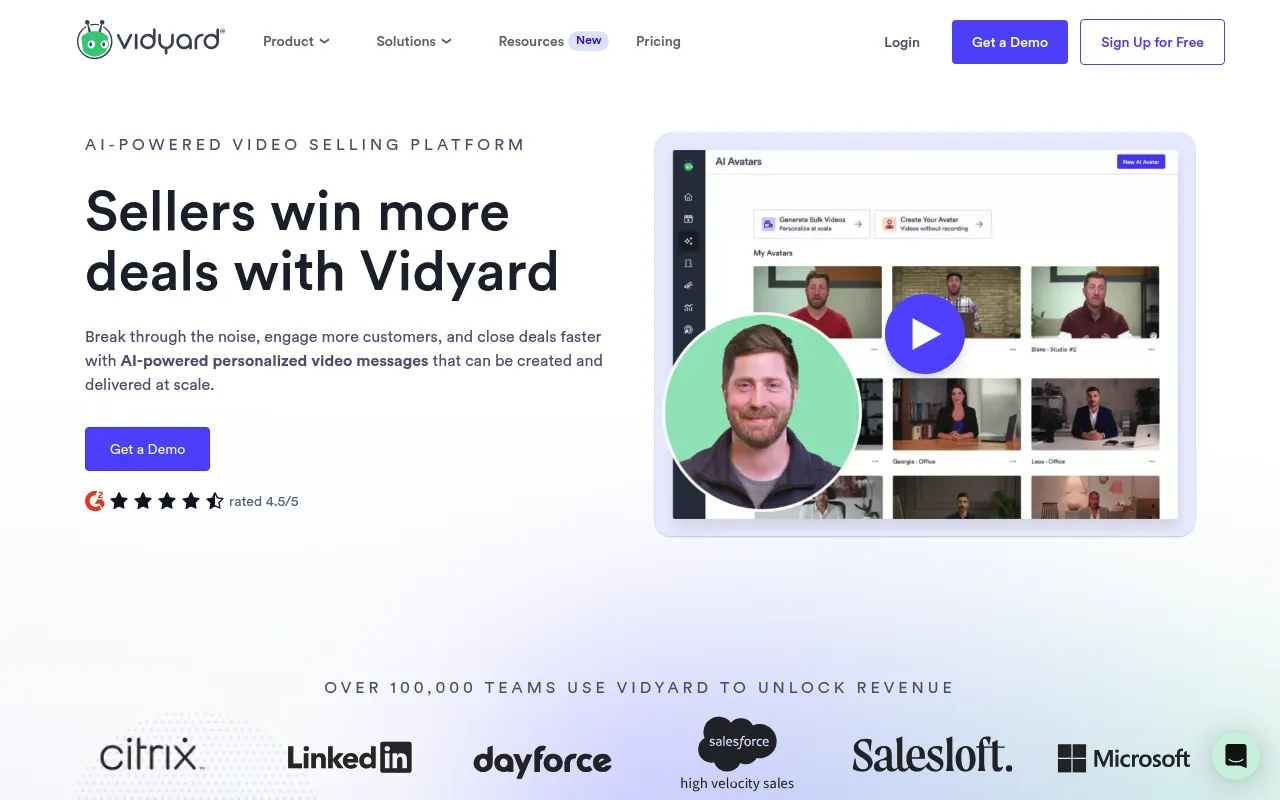
Moving from casual support to high touch enterprise onboarding required a shift in my tooling. I picked up Vidyard because I needed to know if my clients were actually watching the thirty minute platform walkthroughs I sent them. The deep analytics dashboard immediately solved my blind spot, showing me exactly who clicked play and where they dropped off.
The integration with our CRM is exactly what drew me in. I connected Vidyard to HubSpot, and suddenly every video view appeared on the client contact record. If a champion at a target account watched 80 percent of my tutorial, I received a real time alert. This allowed me to time my follow up calls perfectly, reaching out right when the client was actively thinking about our software.
Creating the videos feels slightly heavier than other tools. The desktop app is robust but demands more system resources. I experienced a few crashes when trying to record my screen alongside a heavy presentation deck. It feels built for deliberate, high production communication rather than quick, off the cuff replies to minor bugs.
One feature I rely on heavily is the in video calls to action. I embed a calendar booking link right at the end of my onboarding videos. Clients finish the tutorial and immediately book their next check in call without ever leaving the video player. This removed a massive point of friction in our customer journey and improved our meeting attendance rates.
The pricing structure is definitely geared toward larger teams. Getting access to the advanced analytics and CRM integrations requires stepping up to the premium tiers. It is a noticeable investment, but the ability to prove that video outreach directly prevents churn makes it an easy expense to justify to leadership.
Deep Dive: Key Features
- Advanced Viewer Analytics: Tracks exactly who watched the video, how much of it they completed, and logs the data in your CRM.
- Interactive CTAs: Allows you to embed buttons, forms, and calendar links directly inside the video player to drive immediate action.
Pricing Breakdown
- Free Tier: Yes
- Starting Price: $19/user/month
Pros & Cons
| ✅ Pros | ❌ Cons |
|---|---|
|
|
What Reddit Says
r/CustomerSuccess • Posted by u/enterprise_cs
“Vidyard vs Loom for Enterprise CS?”
The consensus was that Vidyard wins for analytics and CRM tracking, making it ideal for high touch accounts. However, users noted that the interface feels more corporate and slightly less intuitive for rapid fire support tickets.
Community Takeaway: Choose this tool if tracking viewer engagement and integrating data with your existing CRM is your absolute top priority.
3. Zight
Best For: Technical support and customer success agents handling complex bug reports
My Experience & Why We Chose It:
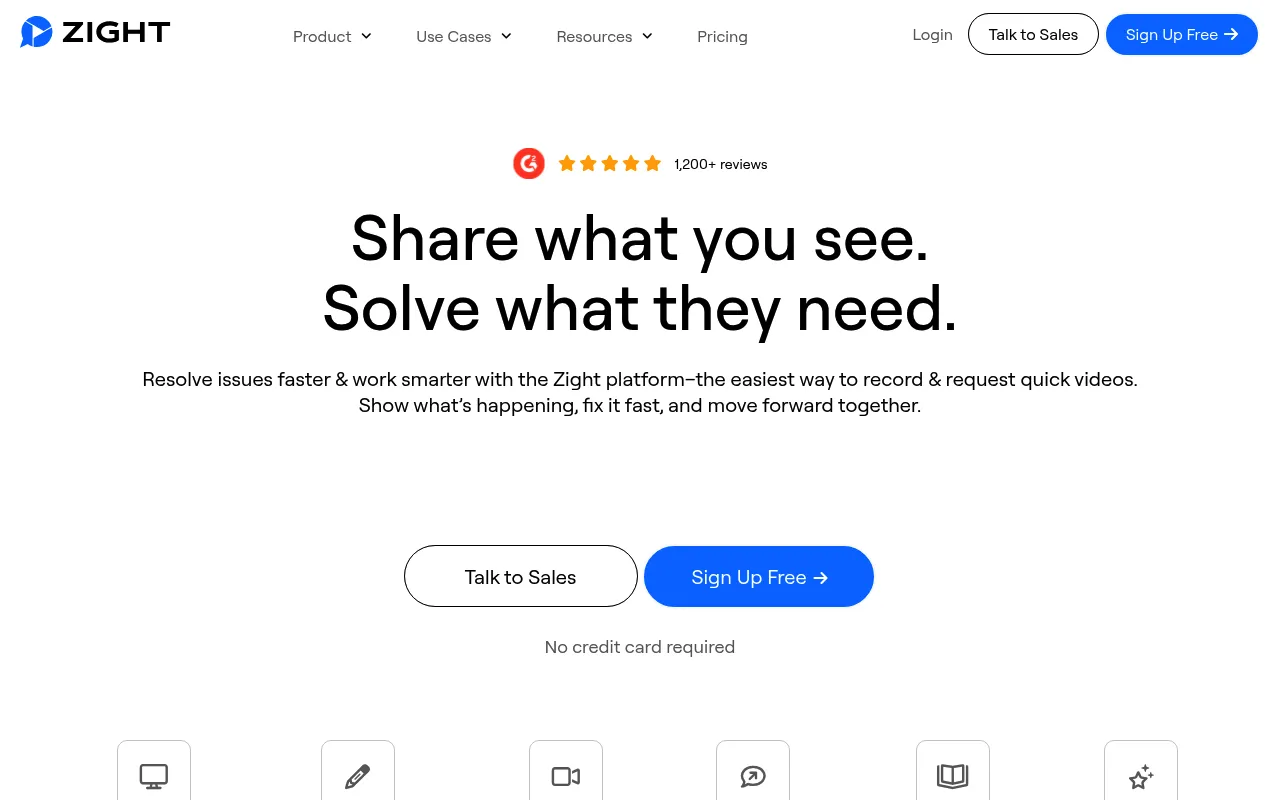
I stumbled onto Zight back when it was still called CloudApp. My customer success role at the time involved heavy collaboration with the engineering team. I needed a tool that could capture my screen, let me draw an arrow pointing to a bug, and generate a link in three seconds flat. Zight delivered exactly that, becoming a permanent fixture on my Mac menu bar.
What keeps me using Zight is the sheer variety of capture options. Sometimes a full video is overkill. Zight lets me grab a quick GIF of a failing drop down menu instead. I drop that GIF directly into a Jira ticket or a Slack message to the development team. The file sizes are small, and the visual context is immediate for the engineers.
The annotation tools are incredibly satisfying to use. After snapping a screenshot or recording a short clip, the editor pops up instantly. I can blur out sensitive customer data, add text boxes, and highlight specific buttons. This is absolutely crucial for compliance when sharing customer screens internally to troubleshoot sensitive accounts.
The interface does feel a bit cluttered at times. Because it tries to be a screenshot tool, a GIF maker, and a video recorder all at once, the menu options can overwhelm new hires. We had to create an internal guide just to show new agents which shortcut keys to use for different types of captures so they would not get lost in the settings.
Despite the slight learning curve, the speed of information transfer is unmatched. I drag and drop files from the Zight menu bar icon straight into my email drafts. It completely eliminates the need to save files to my desktop, keeping my workspace clean and my response times incredibly low.
Deep Dive: Key Features
- Multi Format Capture: Easily switch between high definition video, quick GIFs, and annotated screenshots from a single shortcut.
- Instant Redaction: Quickly blur out sensitive customer information like passwords or personal data before sharing the visual internally.
Pricing Breakdown
- Free Tier: Yes
- Starting Price: $9.95/user/month
Pros & Cons
| ✅ Pros | ❌ Cons |
|---|---|
|
|
What Reddit Says
r/CustomerSuccess • Posted by u/tech_support_hero
“CloudApp (now Zight) is the unsung hero of our support stack”
A user shared how switching to Zight reduced their average ticket handling time by two minutes. Commenters praised the GIF feature for explaining UI navigation to non technical users, though a few complained about occasional login glitches.
Community Takeaway: It is the ultimate hybrid tool for teams that need to mix screenshots, GIFs, and videos on a daily basis to communicate with developers.
4. Tella
Best For: Customer success teams needing highly polished, professional video updates.
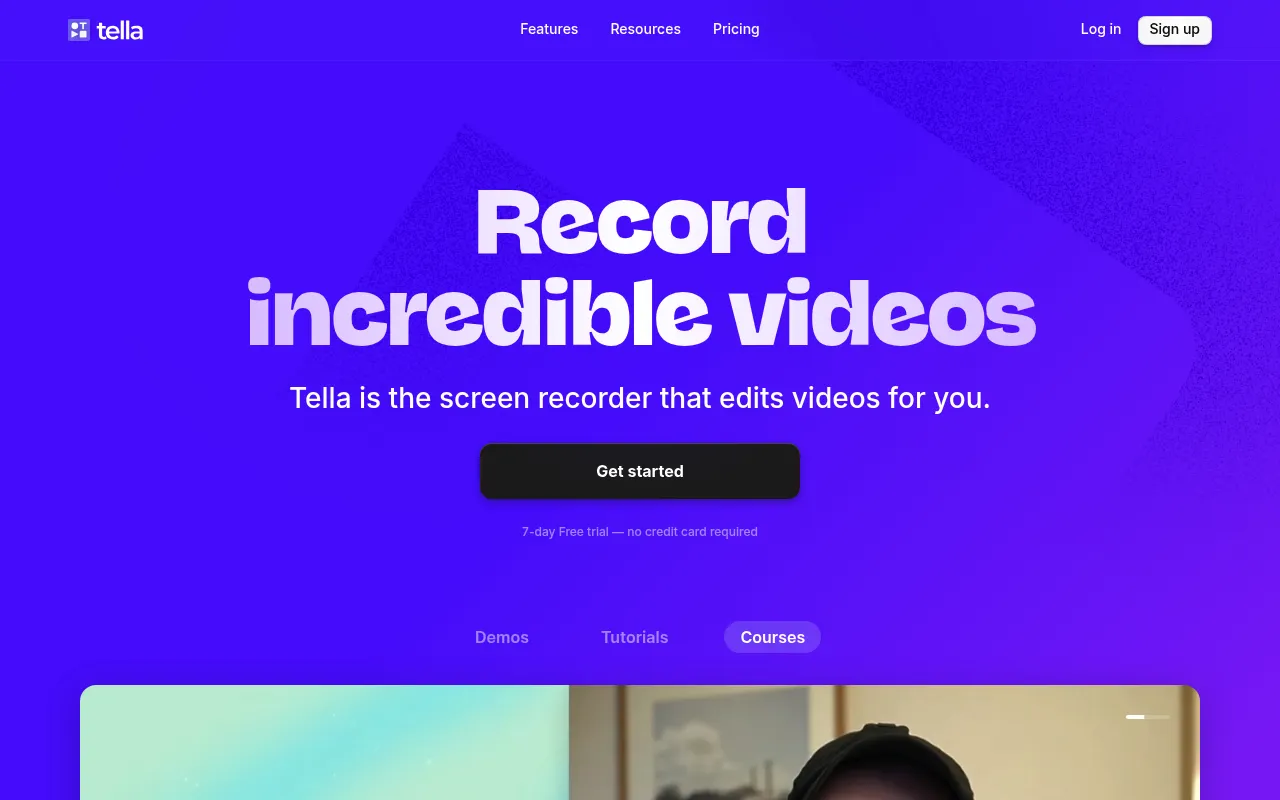
My Experience & Why We Chose It:
I started using Tella when my team realized our standard screen recordings looked a bit too raw for our enterprise clients. The moment I opened the Tella workspace, the sleek interface immediately stood out. It feels much more like a lightweight video editing suite than a basic screen capture tool.
I tested the recording feature during a complex onboarding walkthrough. Unlike other tools that just grab your screen in one continuous take, Tella let me record in separate clips. If I stumbled over my words while explaining a tricky software integration, I did not have to restart the entire twenty minute video. I simply deleted that single clip and recorded it again.
The customization options are exactly what customer success managers need for high stakes client communications. I applied our brand colors to the video background and adjusted the camera bubble to be a sleek rounded rectangle. The ability to zoom in on specific parts of the screen during the editing phase made a huge difference when I needed to highlight tiny navigation menus.
However, I did notice some friction when trying to quickly fire off a casual update. Because Tella focuses so heavily on polish, the rendering and editing process takes a bit longer than a simple point and shoot recorder. When a client asked a quick support question, I found myself hesitating to use Tella because I did not want to spend time tweaking backgrounds.
Ultimately, I chose to include Tella on this list because it elevates the standard of asynchronous communication. For quarterly business reviews or premium onboarding experiences, the polished output builds instant trust. It is the perfect tool when you need your screen recording to look like a professional presentation.
Deep Dive: Key Features
- Clip Based Recording: Record videos in smaller segments so you can easily redo mistakes without starting the entire presentation over.
- Customizable Backgrounds: Add brand colors, adjust your camera shape, and switch layouts dynamically throughout the video to maintain viewer attention.
Pricing Breakdown
- Free Tier: Yes
- Starting Price: $15 per user per month
Pros & Cons
| ✅ Pros | ❌ Cons |
|---|---|
|
|
What Reddit Says
r/CustomerSuccess • Posted by u/cs_pro
“Is anyone else using Tella for QBRs? The polish is insane.”
A user shared how switching to Tella for asynchronous quarterly business reviews increased their client engagement. Commenters agreed that the clip based editing is a lifesaver for people who hate doing retakes, though a few noted it feels like overkill for simple support tickets.
Community Takeaway: Users love Tella for high value client touchpoints but prefer simpler tools for rapid fire support answers.
5. Sendspark
Best For: Customer success managers focusing on personalized outreach and scalable video messaging.
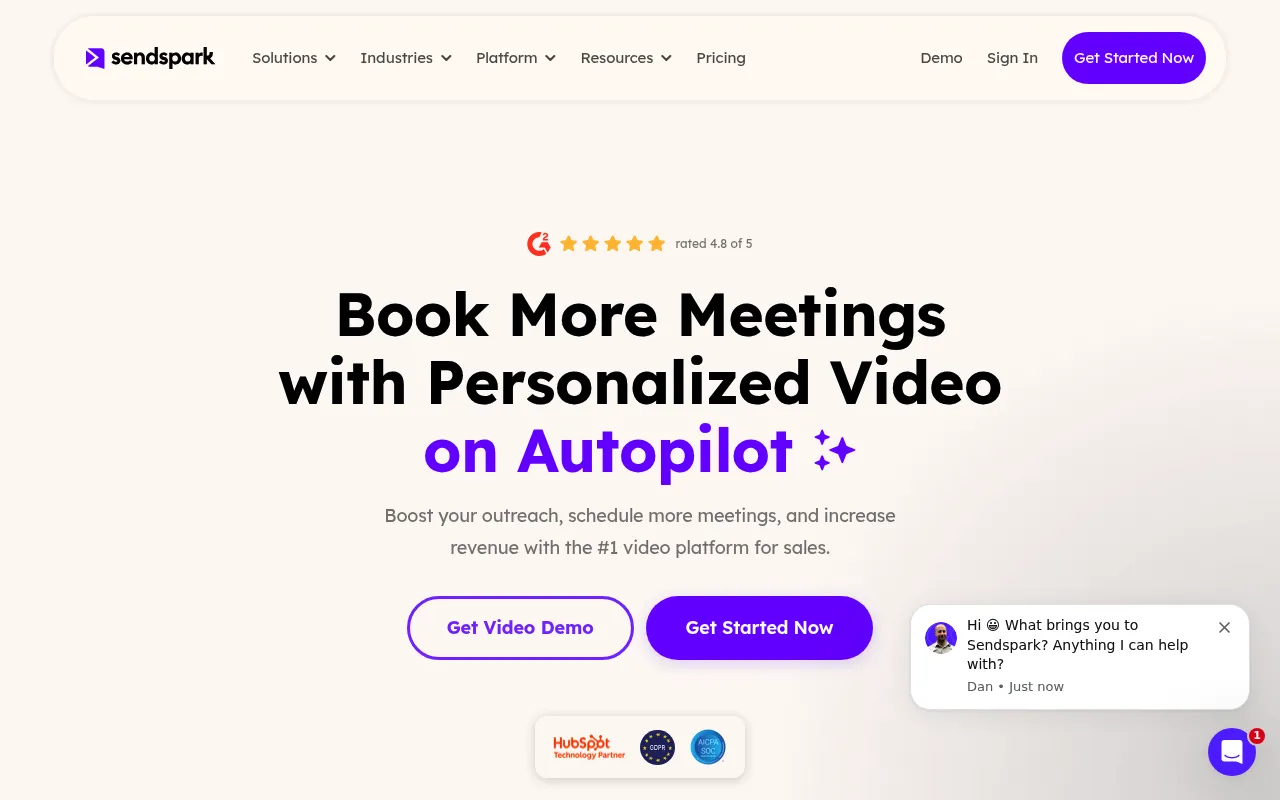
My Experience & Why We Chose It:
I decided to test Sendspark after hearing how effortlessly it integrates into existing email workflows. As a customer success manager, I spend half my day inside my inbox. I needed a tool that would allow me to embed personalized videos directly into my daily client communications without jumping through multiple application windows.
The feature that immediately caught my attention was the dynamic variable functionality. I recorded a single product update video and used Sendspark to automatically overlay the specific name and company logo of each client. Seeing a video thumbnail pop up in my test email with a customized greeting completely blew my mind. It felt incredibly personal but took me a fraction of the time to produce.
The actual recording interface is refreshingly straightforward. I clicked the browser extension, selected my camera and screen, and hit record. There are no overwhelming editing timelines or complex audio settings to navigate. When I needed to send a quick walkthrough of a new feature to an at risk account, I was able to record and send the link in under three minutes.
I did run into a bit of friction regarding the video editing capabilities. If I made a mistake halfway through a long recording, I could not splice the video easily within the platform. I had to either accept the stumble or start the whole recording from scratch. This lack of robust editing means you have to be fairly confident in your delivery before hitting the record button.
Despite the limited editing tools, Sendspark earned its spot on this list because it masters the art of scalable personalization. Customer success teams are always trying to balance automation with a human touch. Sendspark bridges that gap perfectly, allowing me to send highly customized video messages to dozens of clients without spending all day in a recording booth.
Deep Dive: Key Features
- Dynamic Video Personalization: Automatically overlay client names, logos, and job titles onto a single video to scale your personalized outreach.
- Seamless Email Integration: Embed animated video thumbnails directly into Gmail, Outlook, or your preferred CRM platform to increase open rates.
Pricing Breakdown
- Free Tier: Yes
- Starting Price: $15 per user per month
Pros & Cons
| ✅ Pros | ❌ Cons |
|---|---|
|
|
What Reddit Says
r/CustomerSuccess • Posted by u/cs_pro
“Sendspark vs Loom for customer success workflows?”
The discussion highlighted Sendspark as the superior choice for personalized client emails at scale. Many customer success professionals praised the dynamic variables for increasing email open rates. However, several users pointed out that other tools offer better internal team collaboration features.
Community Takeaway: Sendspark is the clear winner for external client communication and personalization, while other tools might be better for internal team updates.
6. Snagit
Best For: Detailed tutorials and annotated bug reports
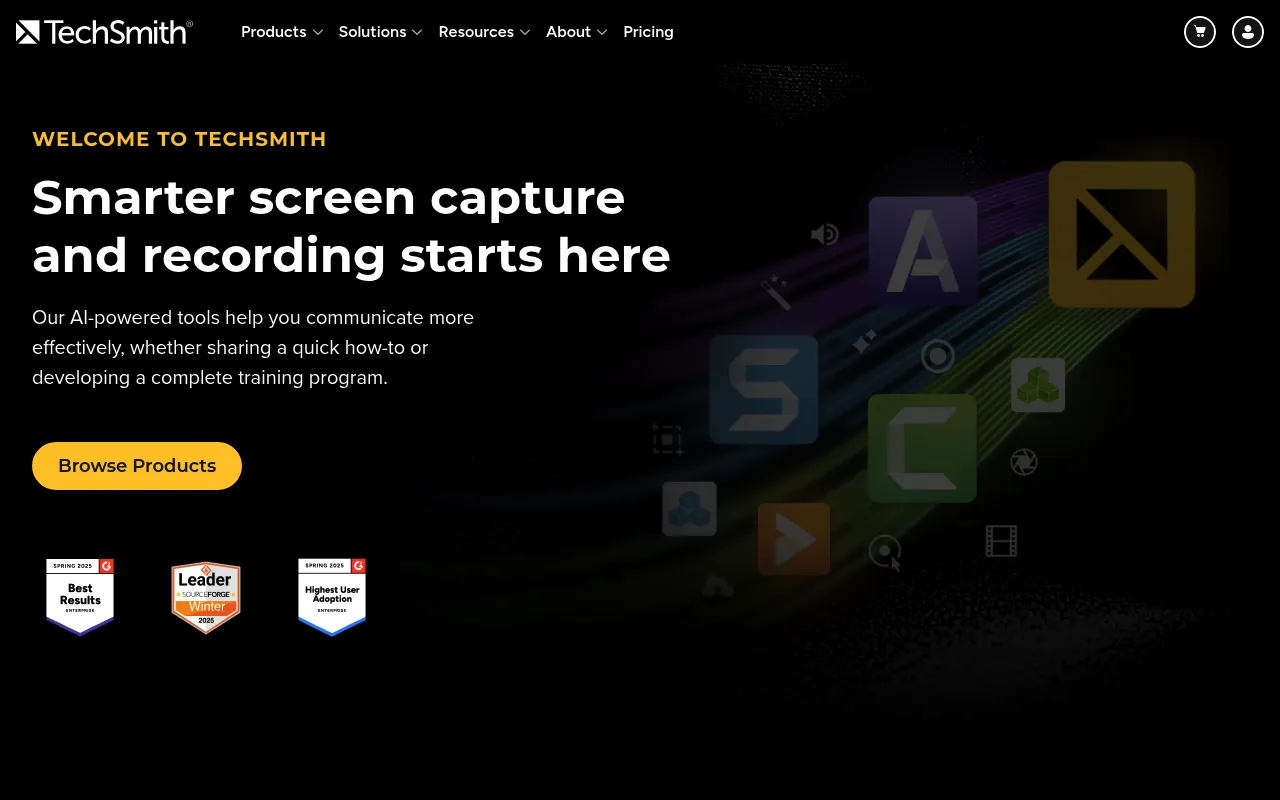
My Experience & Why I Recommend It:
I’ve used Snagit for years to build complex customer onboarding guides. It’s an absolute powerhouse for static annotations and quick video captures. You’ll immediately notice how robust the editor feels.
But that power comes with a steep learning curve. The interface feels a bit dated compared to modern web apps. It reminds me of classic desktop software from a decade ago.
Still, nothing beats it for marking up screenshots. I use the step tool constantly to show customers exactly where to click. It saves me hours of typing out tedious instructions.
The video recording is solid but basic. You can’t do fancy webcam overlays easily. So if you need highly polished presentations, look elsewhere.
Deep Dive: Key Features
Here are the specific tools that actually move the needle:
- Step Tool: Automatically numbers your clicks so customers can follow a sequence without getting lost.
- Panoramic Capture: Lets you scroll down a long webpage or spreadsheet and stitch it into one seamless image.
Pricing Breakdown
- Free Tier: No (15 day free trial available)
- Starting Price: $39 per user billed annually
Pros & Cons
| ✅ Pros | ❌ Cons |
|---|---|
|
|
What Reddit Says
r/CustomerSuccess • Posted by u/csm_guru
“Is Snagit still the king of screenshots or should I move to Loom?”
Users praise the sequential annotation tools for building help center articles. But many complain that the app crashes on Mac and hogs too much memory during long video recordings.
Community Takeaway: It remains the gold standard for static image markups and quick guides. Just don’t expect it to replace a dedicated video platform for slick webcam presentations.
7. Berrycast
Best For: Quick personalized video updates and asynchronous meetings
My Experience & Why I Recommend It:
I stumbled upon Berrycast when I needed a lightweight alternative to Loom. It completely surprised me with its absolute simplicity. You literally just hit a button and start talking.
The onboarding process is practically nonexistent. You install the extension and you’re ready to record in seconds. I love using it for quick check-ins with confused clients.
Plus, the interface stays out of your way entirely. It places a small widget on your screen that you barely notice. This makes recording feel much less intimidating.
However, the editing features are pretty barebones. You won’t find advanced trimming or splicing tools here. It’s built for raw and authentic communication.
Deep Dive: Key Features
Here are the specific tools that actually move the needle:
- Custom Branding: Add your company logo and colors to the video playback page to look highly professional.
- Password Protection: Lock down sensitive customer account reviews with a password so only your client can view them.
Pricing Breakdown
- Free Tier: Yes
- Starting Price: $9.99 per month
Pros & Cons
| ✅ Pros | ❌ Cons |
|---|---|
|
|
What Reddit Says
r/SaaS • Posted by u/founder_steve
“Berrycast vs Loom: Which one is actually worth paying for?”
Most commenters love the clean UI and white labeling options. However, a few users note that the Chrome extension sometimes fails to save recordings if your internet drops unexpectedly.
Community Takeaway: A fantastic affordable choice if you care deeply about custom branding on your video pages. Just be mindful of occasional extension glitches.
How We Evaluated These Screen Recording Tools
Our evaluation process wasn’t just about reading feature lists. We looked at three core pillars: ease of use, sharing capabilities, and the actual experience of integrating them into a daily customer success workflow. We tested them by recording real support videos, analyzing the analytics provided, and checking how easily the videos could be embedded in emails and help center articles.
We specifically looked for tools that understand the need for speed and clarity in customer interactions. The top contenders all proved they could make creating and sharing videos a frictionless experience.
Final Verdict
If you need advanced analytics and deep CRM integrations for a large enterprise team, Vidyard is a powerhouse. For creating highly polished, professional-looking videos with custom layouts, Tella is unmatched. However, for the sheer speed and ease of creating and sharing async video messages—which is often the primary need for customer success—Loom remains the industry standard.
Ultimately, the best tool is the one that your team will actually use to replace lengthy text emails with clear, concise videos.
Frequently Asked Questions
Screen recording software allows you to capture your computer screen, often along with your webcam and microphone, to create videos. It's widely used for tutorials, presentations, and async communication.
Yes, many tools like Loom, Vidyard, and Zight offer free tiers with limited features (e.g., maximum video length or number of videos). These can be a great starting point for individuals or small teams.
Screen recordings can significantly reduce resolution times for complex support tickets. Showing a customer how to do something is often much faster and clearer than typing out step-by-step instructions. It also adds a personal touch to support interactions.

